Bank Reconciliation
The Bank Reconciliation feature lets you reconcile bank statements with PropMan books. It keeps the Management Report and other financial reports accurate, and it is how you Close Fiscal Month when the month is balanced.
Overview
Bank Reconciliation helps you:
Match bank statement lines (from Plaid, BAI files, or manual entry) with PropMan records
Clear outstanding checks against bank debits
Match deposit credits to resident payments
Enter journals and timing adjustments without leaving the workspace
Drive the DIFFERENCE to about $0.00 and close the fiscal month
The primary surface is the full-screen Bank Rec Workspace. The older card-style reconciliation inbox is no longer used; that route now opens the workspace.
Bank Rec Workspace
The Bank Rec Workspace is a full-screen reconciler with a metrics header, a bank pane, a book register, and a journal / finish dock.
Access
Open it from a Building card:
Open Reports → Bank & Finance
Click Bank Rec Workspace
Other entry points:
Reports → Bank & Finance → Recon Workbook → Open full screen
The building card Journals quick action, when it shows a numbered badge of open bank items (tooltip: Reconciliation) — opens the workspace for that building
The workspace URL is /bank-rec with building and month query parameters.
Legacy /reconciliation redirects here.
Layout
Header
Building name, reconcilable capital account, and month (previous / next)
View toggle: Working | Matched
Hint: Clear Working before closing the month
Statement button: view or upload the bank statement PDF
Prominent DIFFERENCE (recon break) — finish when this is about $0.00
Metrics: Opening book, Adjusted book, Outstanding checks, Adjustments, Statement ending, Open bank items
Left pane — Bank Statement
Open bank feed lines for the statement month (Plaid / BAI), plus any manual lines you add.
Filters: All / Suggested / Credits / Debits
Common actions:
Add statement line — enter a missing bank line when the feed is incomplete
Reconcile / Reconcile deposit / Reconcile check — context-aware primary action based on the current selection (deposit credits vs check debits)
Dismiss — accept a bank line without a payment pack when that is intentional
Suggested matches from the bank feed (with Ignore when you do not want the hint)
Credits that were accepted without linking resident payments may show Needs payment match so you can finish them with Reconcile deposit.
Right pane — Book Registers
PropMan checks, payments, and related book rows for the fiscal / statement month.
Select outstanding checks and click Clear Checks
Select resident payments when matching a deposit credit
Rows cleared in a later month appear under a separate divider when relevant
Bottom dock — Journal / Finish
Review or create a New Journal for unmatched bank activity
Enter or edit adjustments (timing / reconciling items) and match them to book rows
Set statement ending balance
Click Close Fiscal Month when Working is clear and the difference is about $0.00
Working vs Matched
Mode |
Meaning |
|---|---|
Working |
Still open: unmatched bank or books, unconfirmed suggestions |
Matched |
Confirmed links only (deposit packs, cleared checks, adjustment matches) |
Clear Working before closing the month. On unlocked months you can Unmatch confirmed packs from Matched when a link was wrong.
Suggested matches may appear in Working to help you; they are not treated as done until you confirm them. Heuristic suggestions are display aids — only confirmed matches are durable.
Typical month-end flow
Open Bank Rec Workspace for the building and statement month
Upload or view the bank statement if needed
Work through Working: clear checks, reconcile deposits, journal remaining items, and confirm adjustment matches
Switch to Matched to review confirmed links; Unmatch anything incorrect
When DIFFERENCE is about $0.00 and Working is empty, Close Fiscal Month
A red badge on the Building card dropdown counts fiscal months that still need reconciliation. When that badge is present, the Bank & Finance menu highlights the open workbook month.
Recon Workbook
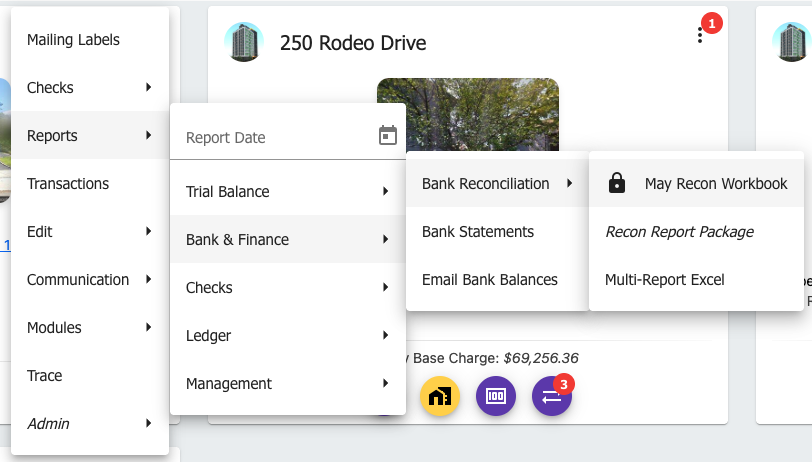
Bank & Finance menu with Recon Workbook and related options
The Recon Workbook is a summary modal for the selected fiscal month:
Peek at the recon break, bank balance, and adjustments
Jump to outstanding checks / clear-checks
View or upload the bank statement
Open full screen into the Bank Rec Workspace for day-to-day matching
Close Fiscal Month when balances agree (also available in the workspace dock)
Locked (already closed) months show a lock icon on the workbook menu item.
Recon Report Package
The Recon Report Package merges important reports into a single PDF (and opens an uploaded bank statement in another tab when available):
Bank Reconciliation — summary of the reconciliation
Outstanding Checks — checks not yet cleared
Cleared Checks — checks cleared this month
Statement of Disbursements — disbursements for the fiscal month
General Ledger — general ledger for the fiscal month
Open it from Reports → Bank & Finance → Recon Report Package.
See Reports for more about these reports, Multi-Report Excel, and Email Bank Balances.
Bank feed and training
If you have set up Plaid or BAI files, PropMan periodically synchronizes bank balances and pulls transaction data into open reconciliation records. PropMan suggests GL mappings and check clears from past work; confirming journals and clears continues to train those suggestions.
PropMan can auto-clear vendor checks when bank check details match PropMan. If a check cannot be auto-cleared, it appears in the workspace for manual review.
See the Clear Checks flow in the workspace book pane and Trace for investigating cleared checks.
Note
Regular bank reconciliation is essential for accurate financial records and for catching issues early. Prefer completing deposit payment matches with Reconcile deposit rather than dismissing deposit credits unmatched.