Vendors
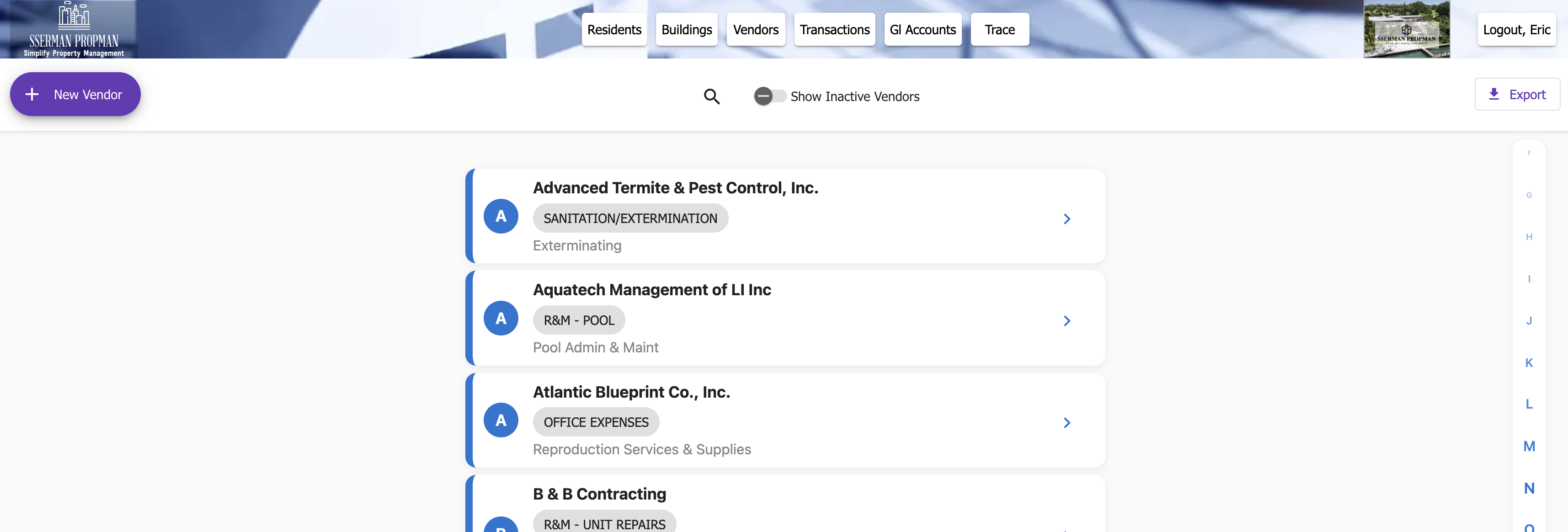
The Vendors page manages all vendor-related information and operations across properties.
Vendors Page
Overview
Vendors are the entities that provide goods and services to the property.
Vendors provide invoices, and the property pays them.
Maintaining a Vendor Directory and managing these relationships is a key part of managing properties effectively. A complete Vendor profile makes the process of writing Checks to the Vendor quick and easy.
The Vendors page enables property managers to:
Add and maintain Vendor information
Quickly find alternate vendors for a GL
Track Vendor spend and performance
Review vendor invoices
Generate vendor reports
Vendor Directory
The main view shows all vendors with key information:
Vendor Name
Contact Information
Description
Default GL Account
The familiar Rolodex-style view provides a quick overview of all vendors.
The letters (A-Z) at the side of the page are used to navigate to the first letter of the Vendor Name.
Note
Vendors can be filtered on most criteria using the toggle-search box at the top of the page.
Selecting a Vendor opens the Vendor Details side panel.
Vendor Details
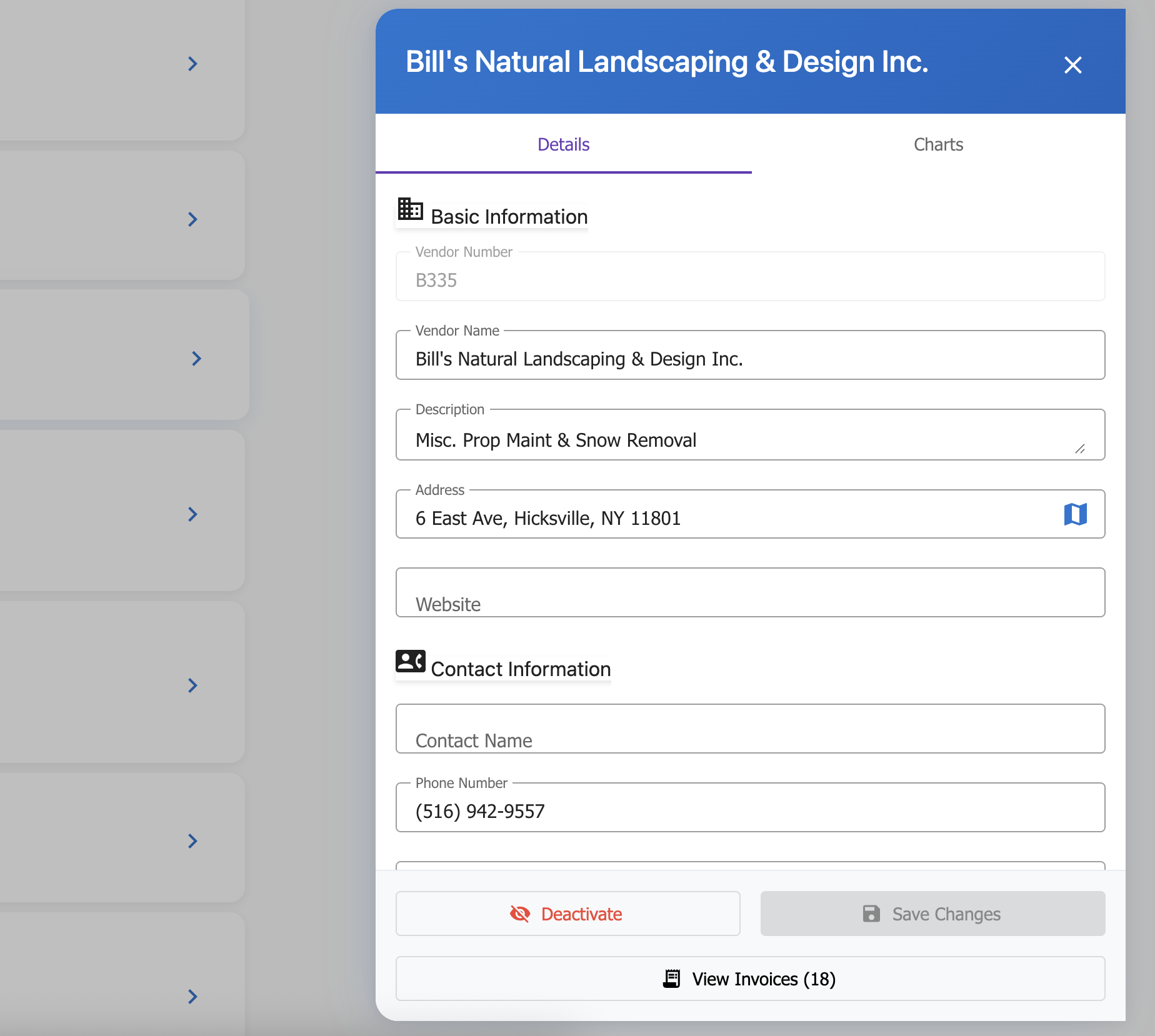
The Details tab of the Vendor Details side panel is where you can add and maintain Vendor information.
Vendor Details Side Panel
Each vendor’s profile includes:
Basic Information
Vendor Number - Unique identifier for the Vendor
Name - The name of the Vendor
Description - A brief description of the Vendor
Address - The address of the Vendor
Website - The website of the Vendor
Contact Information
Contact Name - The name of the primary contact for the Vendor
Phone - The phone number of the Vendor and/or the contact
Email - The email address of the Vendor and/or the contact
Financial Information
Default GL Account - The default GL account for the Vendor
This is the GL account that will be auto-populated when writing Checks to the Vendor
Vendor Spend
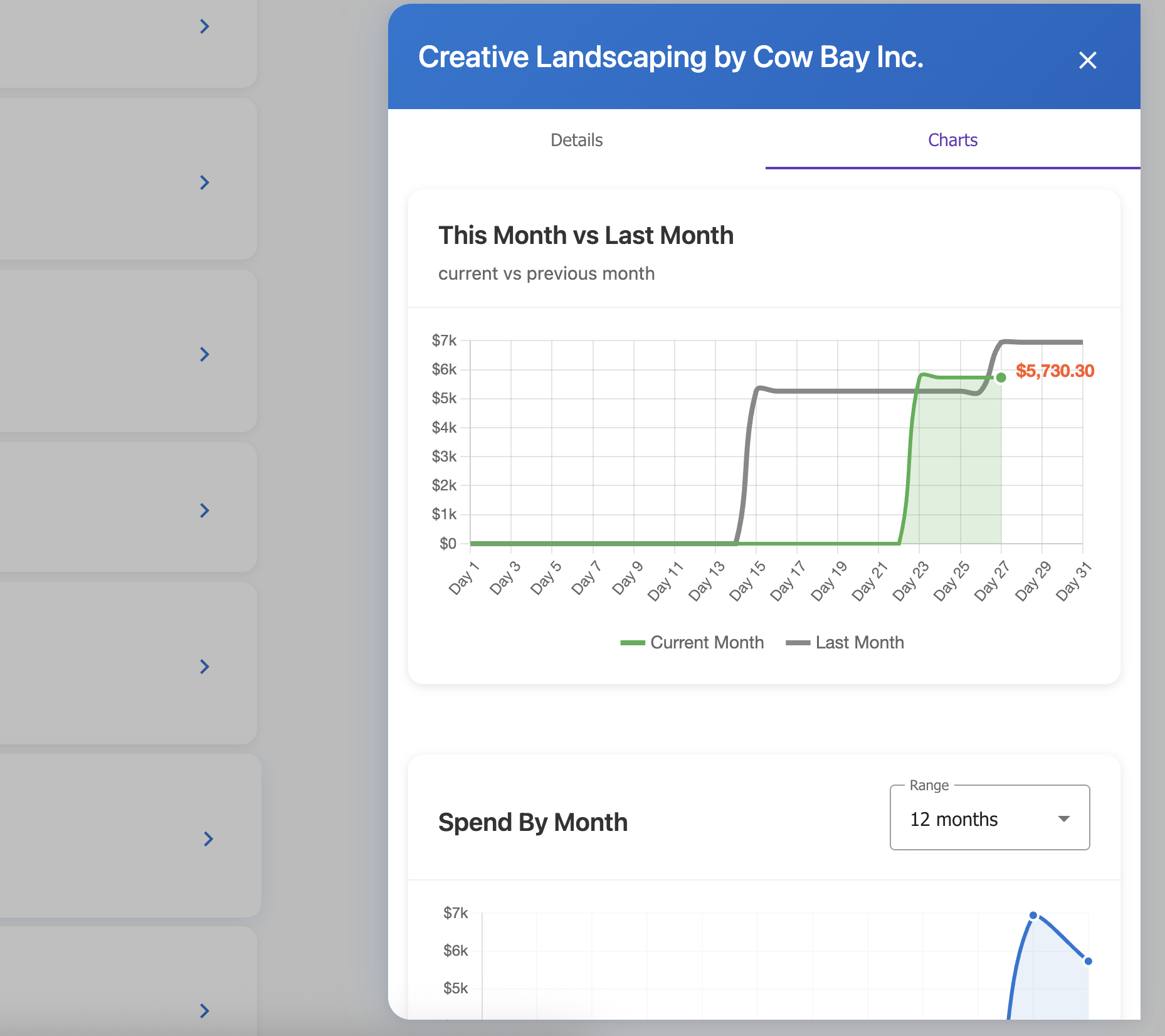
PropMan tracks Vendor spend and lets you dive into the details with a few clicks.
Click the Charts tab in the Vendor Details side panel to see a number of charts that show the Vendor spend over time.
Vendor Spend
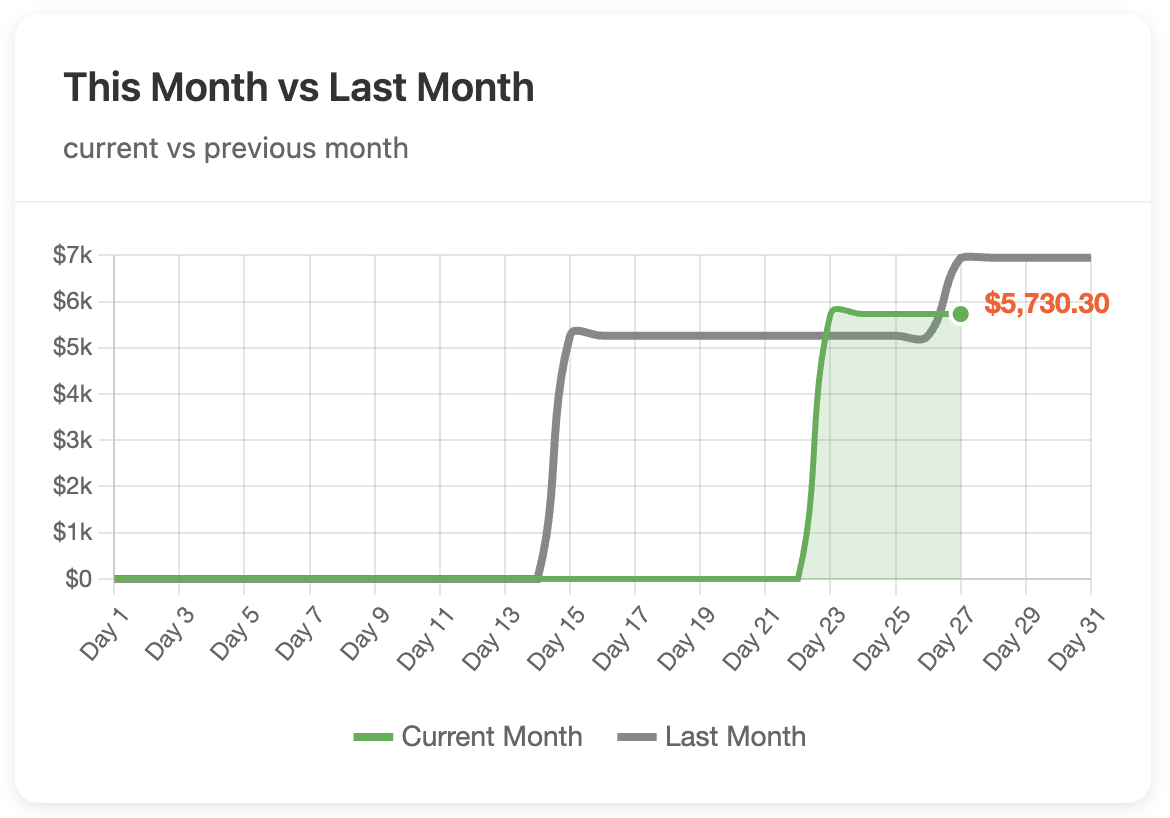
Month-To-Month Chart
This chart shows the Vendor spend this month-to-date as compared to the previous month.
Month-To-Month Chart
Coming Soon: Select month-to-date vs same month of the previous year
Spend by Month Chart
This chart shows the Vendor spend over a selectable time period.
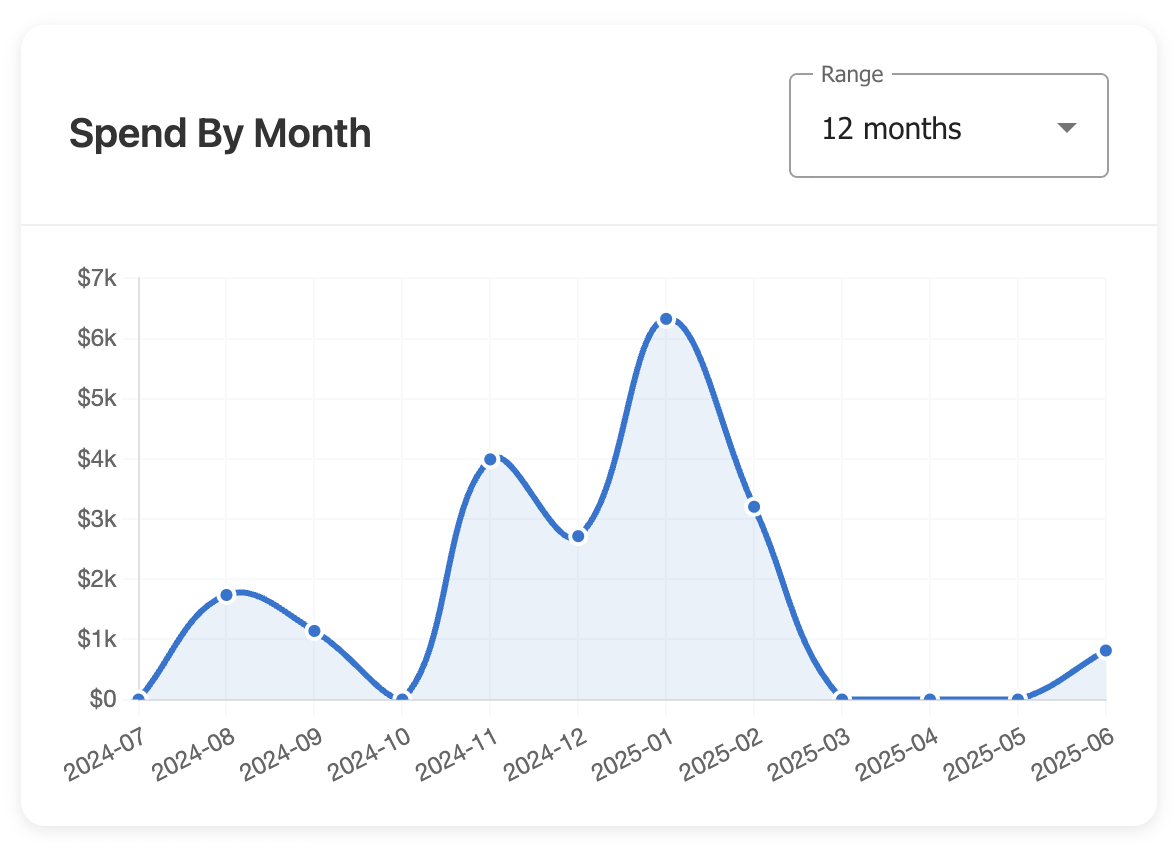
Spent by Month Chart
Select the time period for the chart using the dropdown menu.
Options:
12 Months (Default)
6 Months
3 Months
All Time
Vendor Management
Common vendor-related actions include:
Add New Vendor - The New Vendor button opens an empty Vendor Details side panel
Edit Vendor Information - Select a Vendor to open the Vendor Details side panel
Deactivate/Reactivate Vendor - Vendors can be deactivated if no longer being used
Deactivating a Vendor prevents it from showing up in the Check Writing dropdown
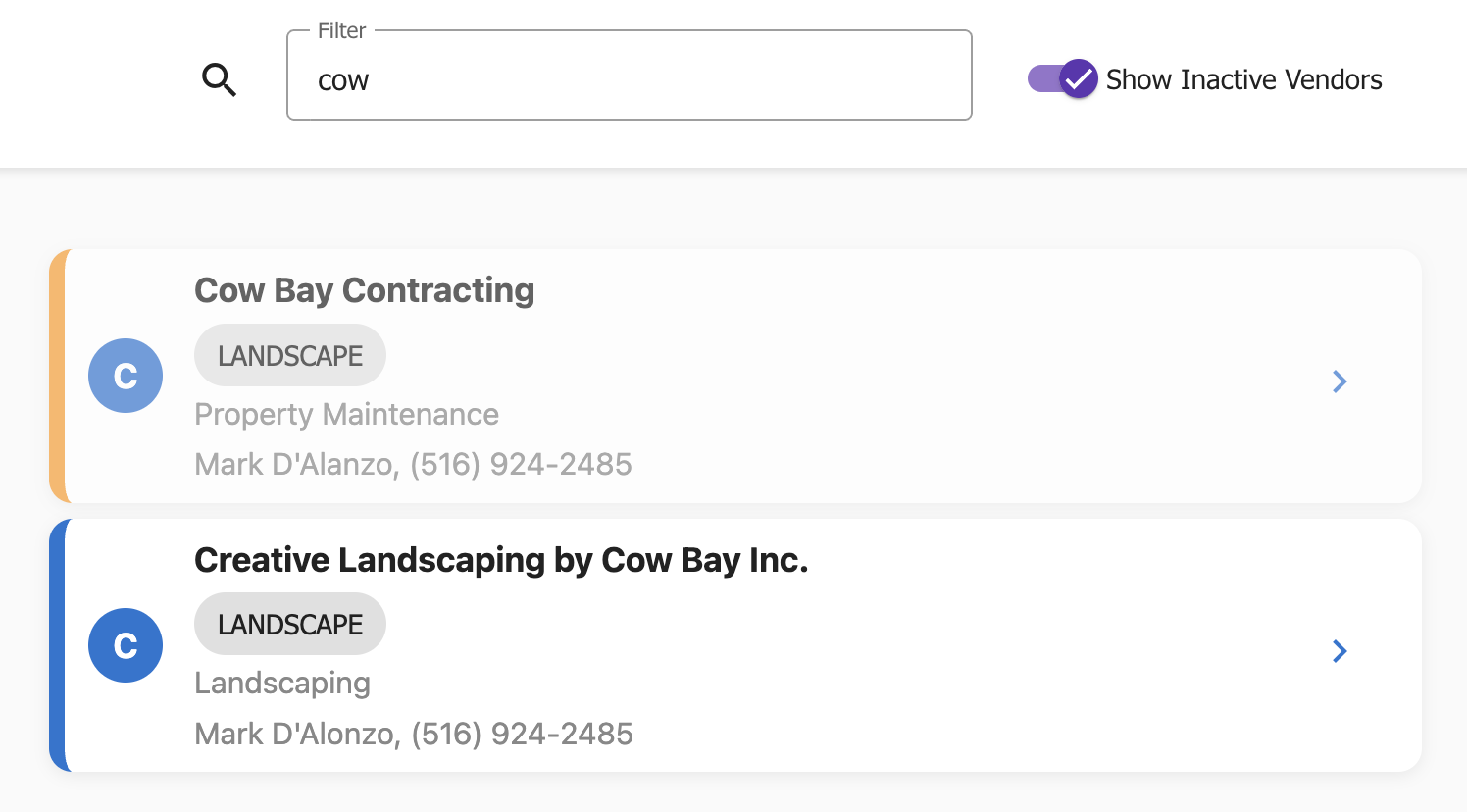
Inactive Vendors
Vendors can be deactivated from the Vendor Directory by clicking the Deactivate button
Deactivated Vendors can be reactivated by clicking the Activate button
Show and select inactive Vendors in the Vendor Directory by clicking the Show Inactive slider
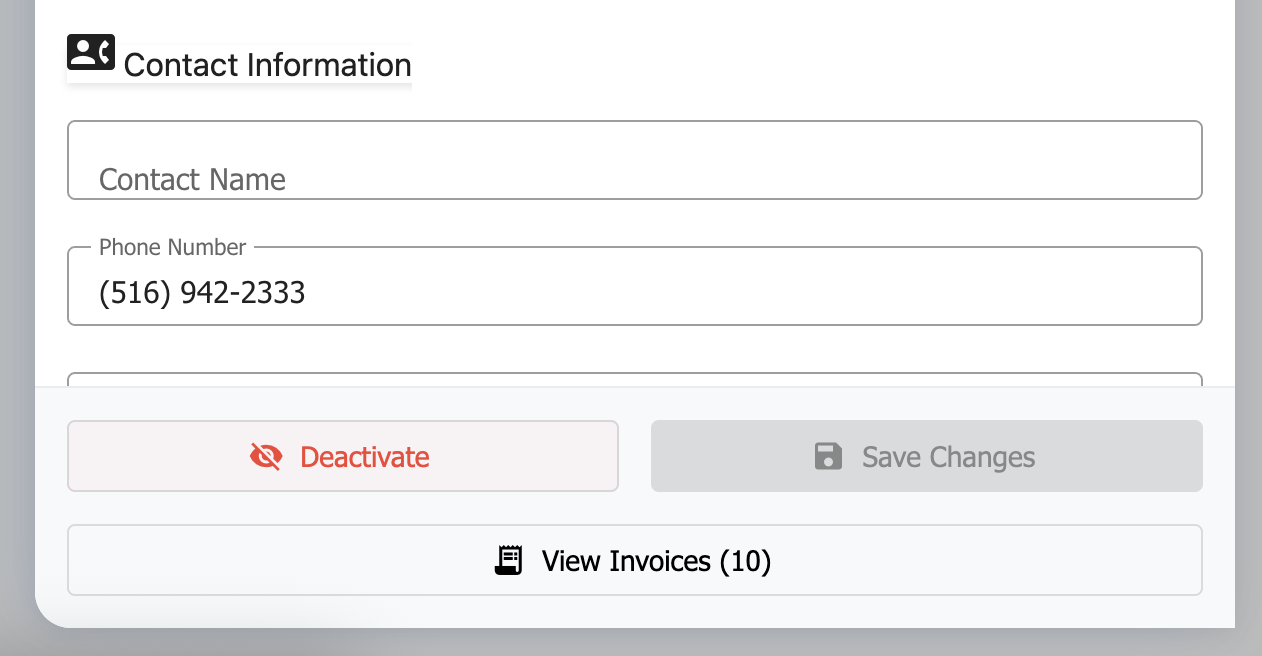
Side Panel Buttons
View Invoices - View the invoices for the Vendor
A collapsed monthly view of all invoices uploaded for the Vendor
View any individual invoice
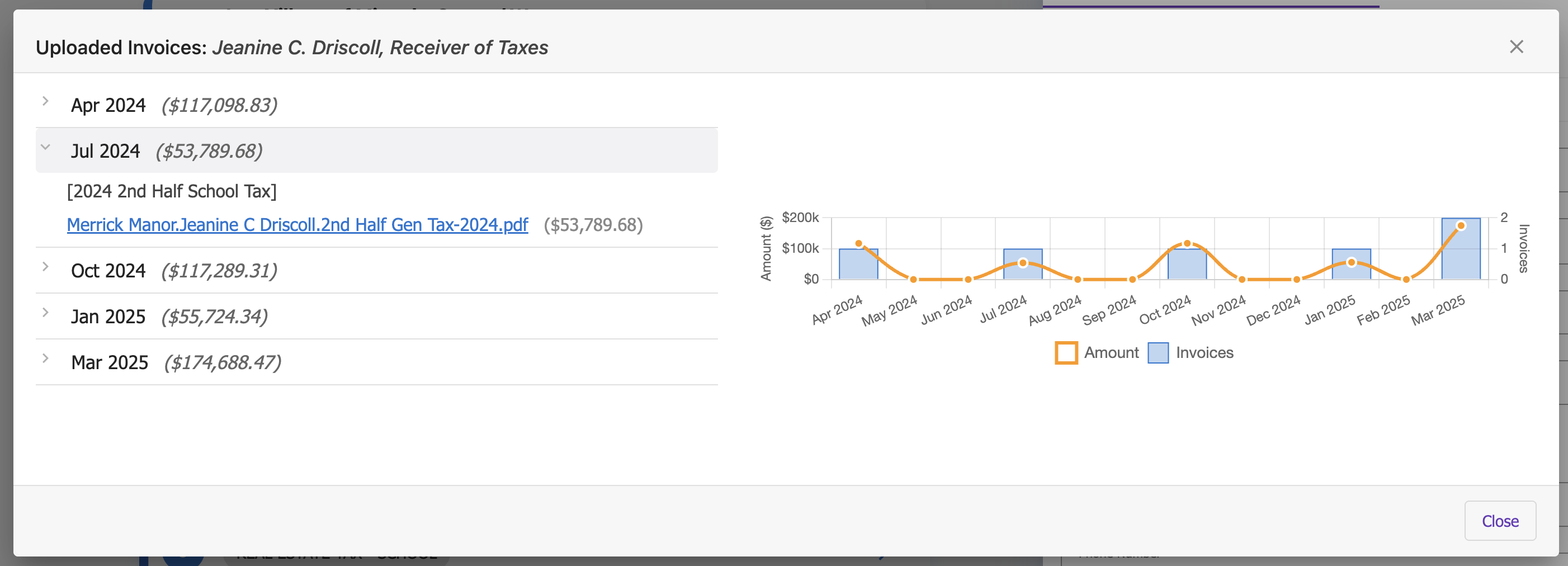
Uploaded Invoices
Export Vendors - the Export button downloads the Vendor data as an Excel file